Header and menu
Forma's header menu is nopCommerce's own main menu. Add a mega menu, and let long menus fold into More.
The main menu
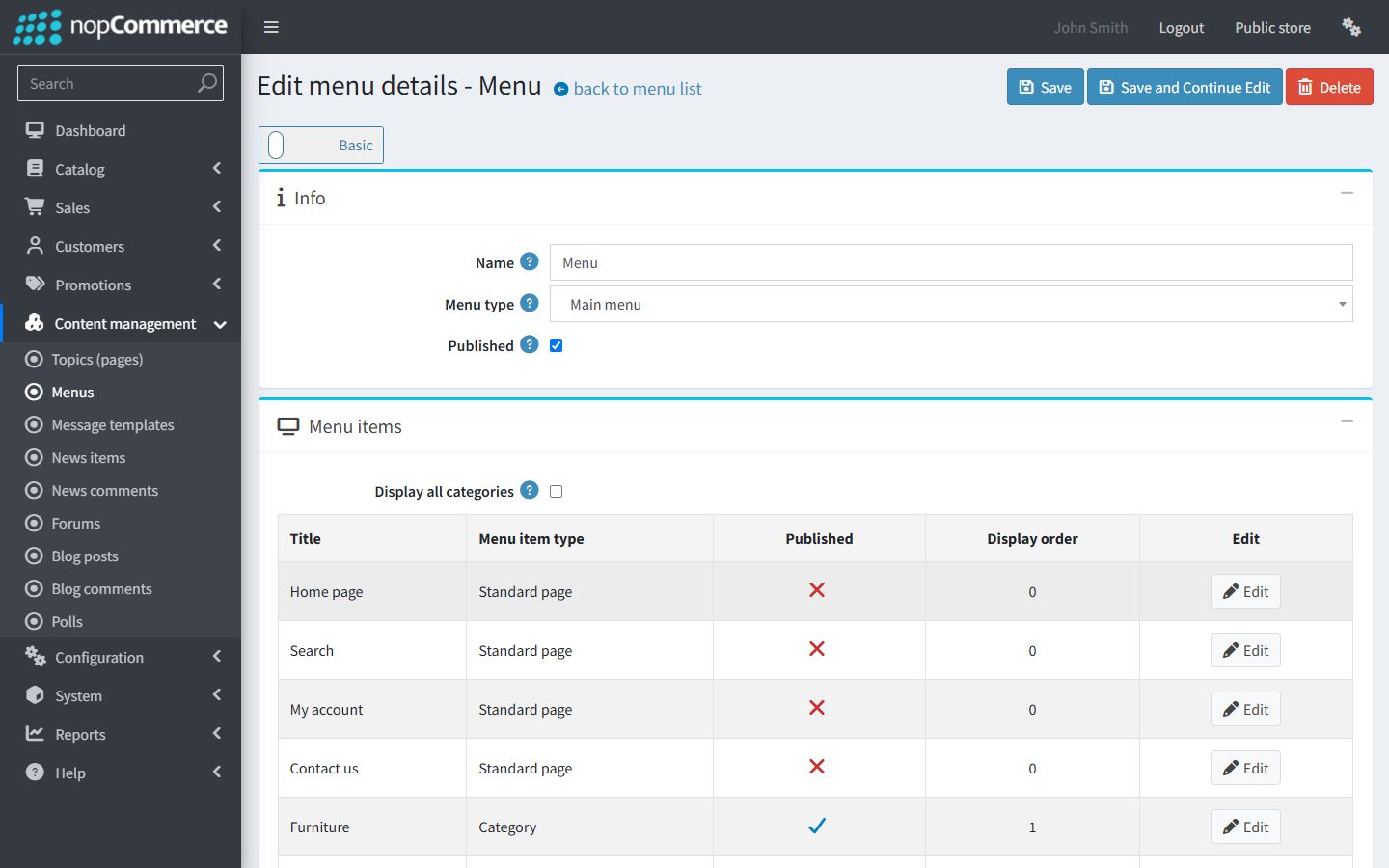
The header menu is nopCommerce’s own menu, under Content management → Menus (menu type Main menu).
Forma shows the first published main menu. A store installed with sample data has two main menus:
- Categories: published;
- Menu: unpublished.
To use your own menu, publish Menu and unpublish Categories.
Menu items
- Add categories, pages or links as menu items. Display order sets their position.
- A top item with child menu items opens a dropdown. When the top item has a link, the dropdown starts with a View all … link to it.
- A child item with its own child items opens a second-level list beside the dropdown.
Mega menu
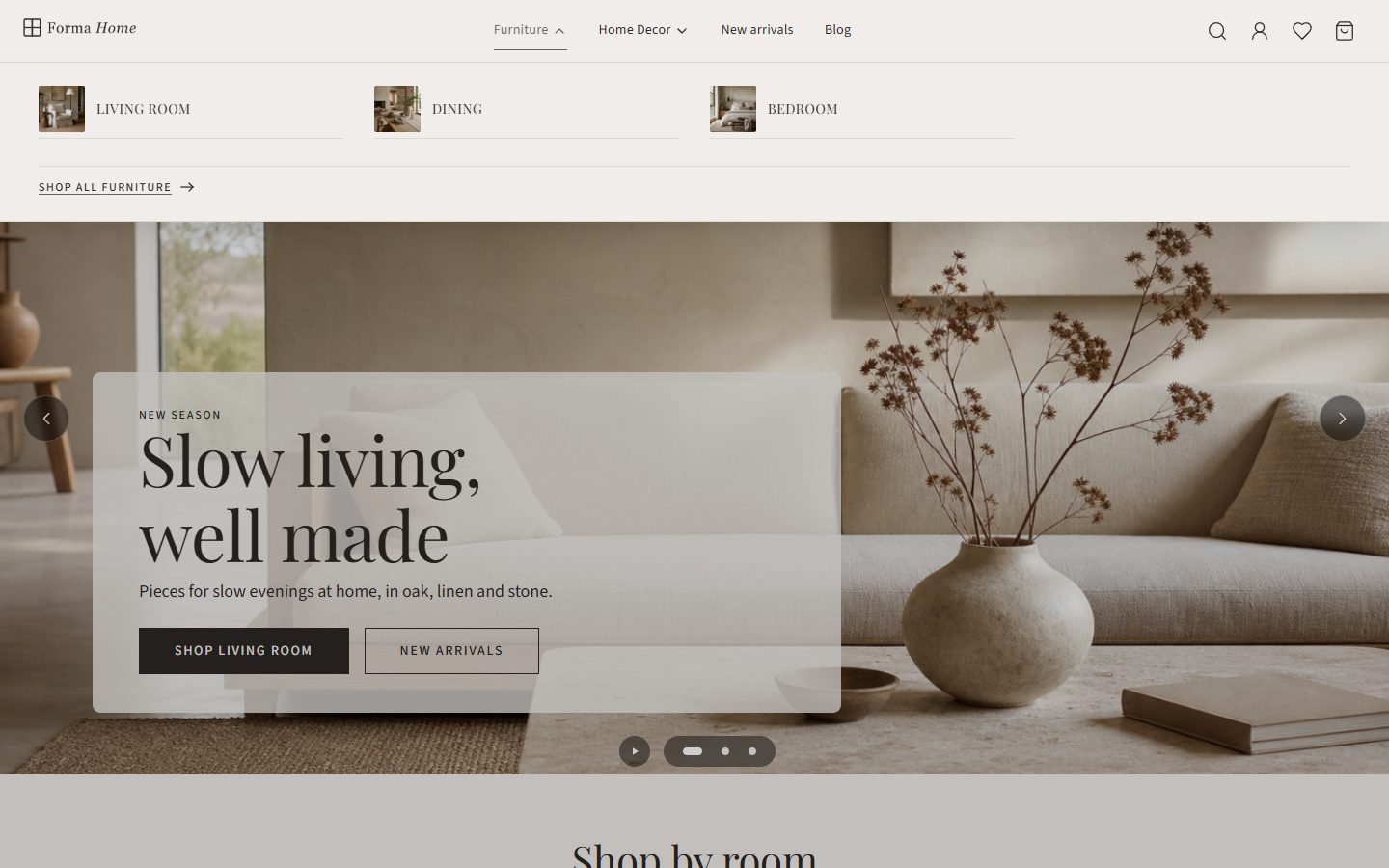
A mega menu shows a category’s subcategories as columns, each with the subcategory’s picture.
- Open your main menu under Content management → Menus.
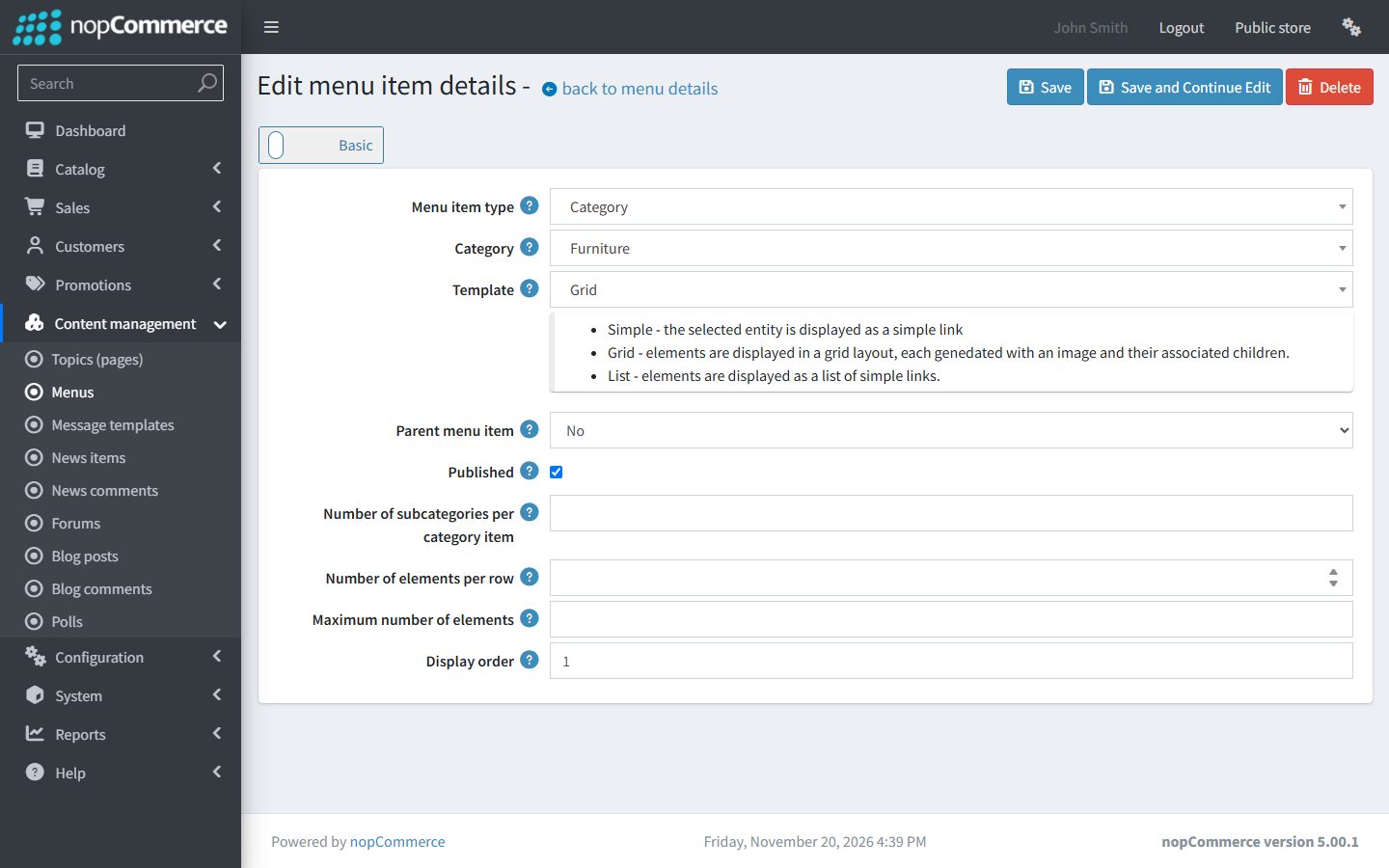
- Add a menu item of type Category (or edit one) for the parent category, for example Furniture.
- Set Template to Grid.
- Don’t add child menu items to it.
- Save.
In the mega menu:
- each subcategory becomes a column, with its picture;
- the subcategories’ own subcategories are listed under each column;
- a Shop all … link at the bottom opens the parent category;
- Number of elements per row on the menu item sets how many columns a row holds (up to 6).
When the item has child menu items, nopCommerce shows them as a dropdown instead of a mega menu. Remove the child items to get the mega menu.
The More menu
On screens 1024 px wide and up, the menu stays on one row. Top items that don’t fit move into a More dropdown at the end of the menu. Nothing needs to be set: Forma checks again when the window is resized.
On phones
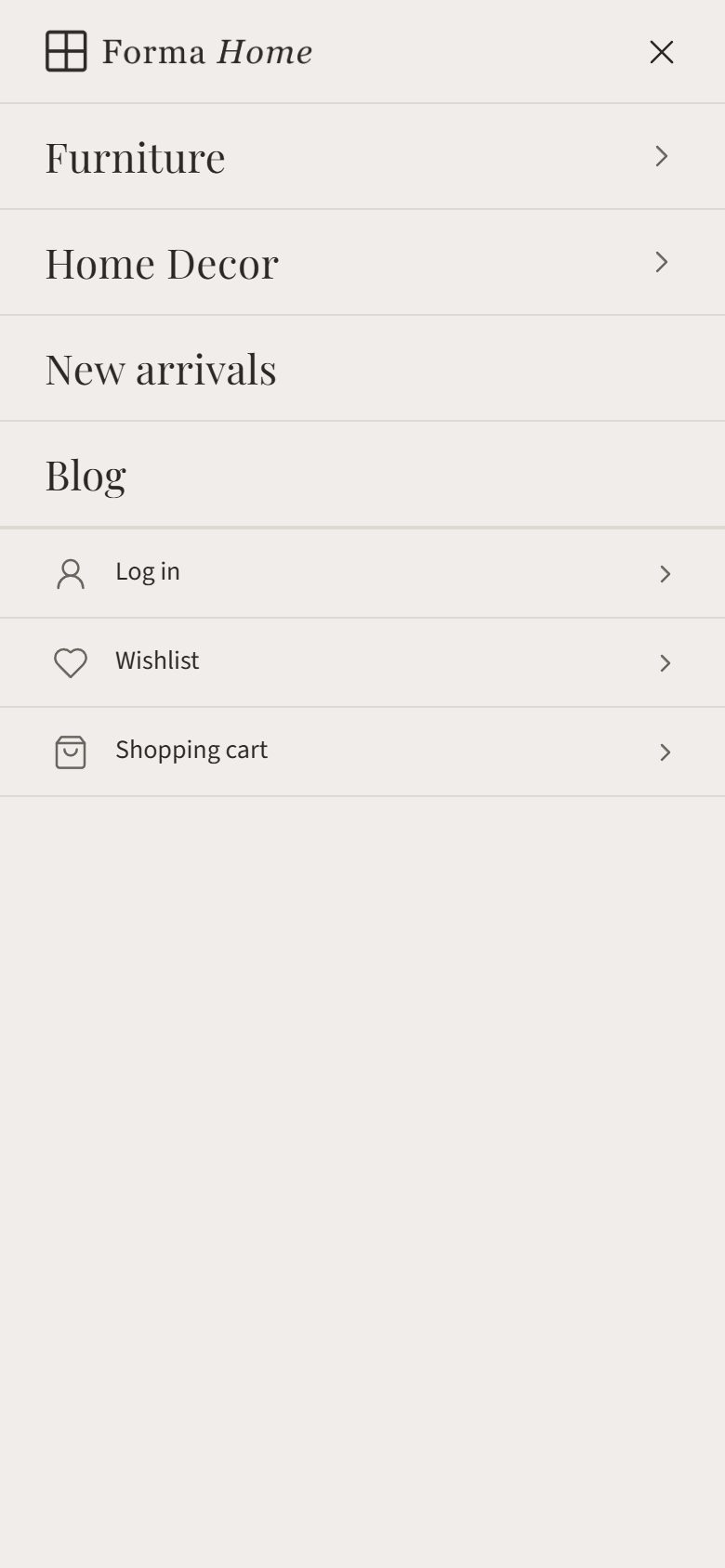
On phones the same menu opens in a side drawer from the menu button.
Search
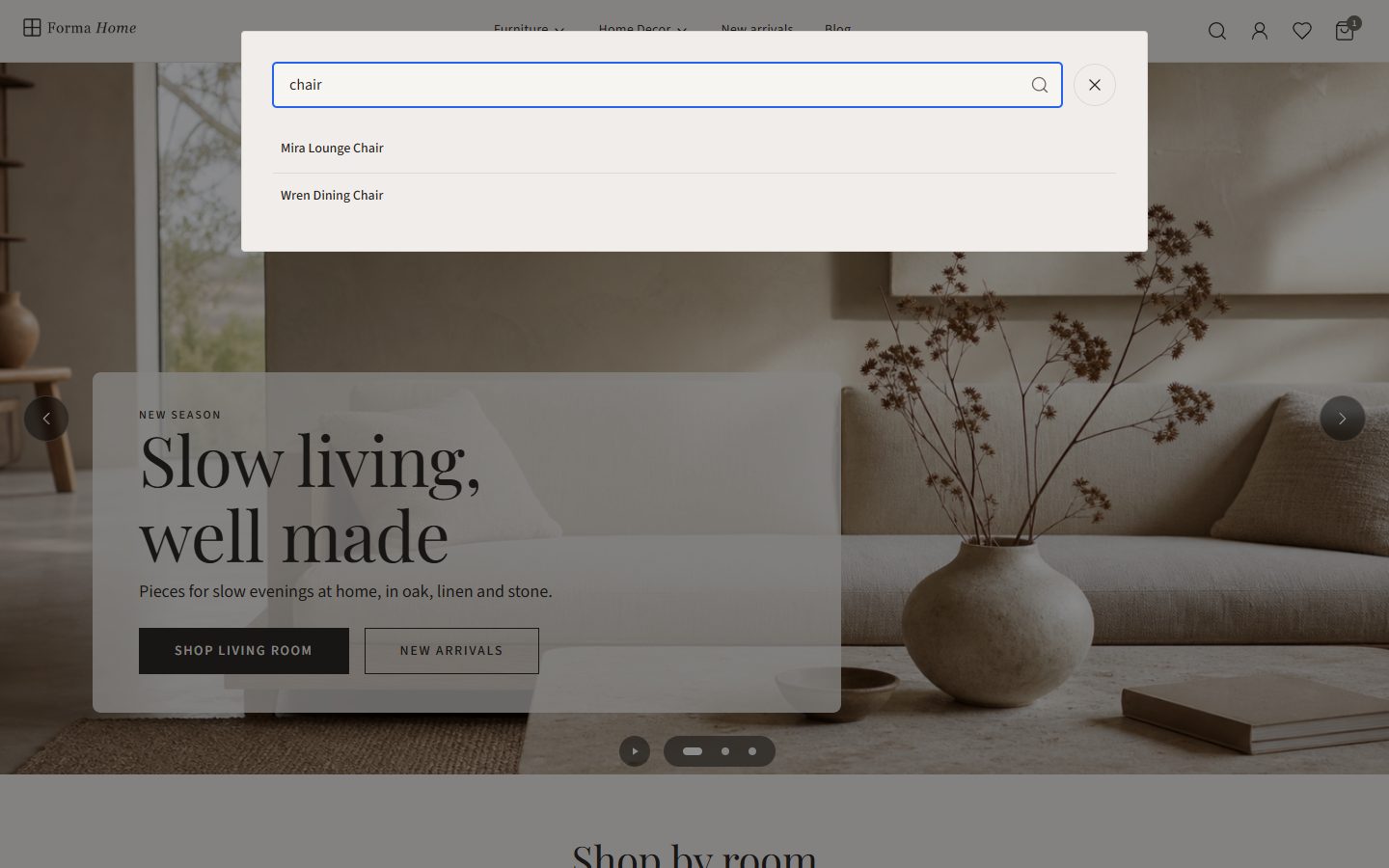
When product search is on (Configuration → Settings → Catalog settings → Search enabled), the search icon in the header opens a search dialog. It uses nopCommerce’s own search box, so search autocomplete works as set in Catalog settings.