Product cards and product page
What Forma adds to product cards, the product page and the cart. None of it needs a setting.
Category pages
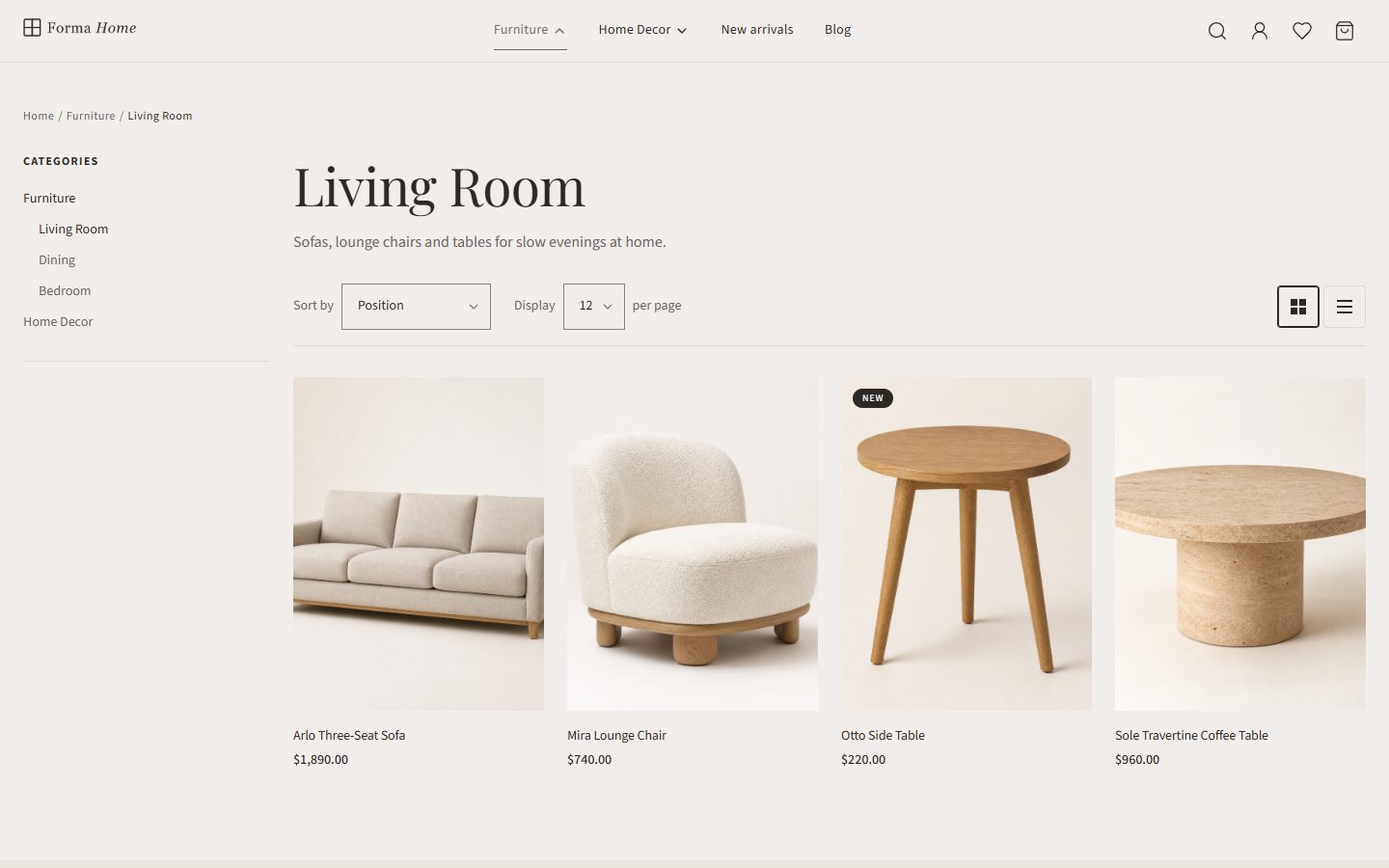
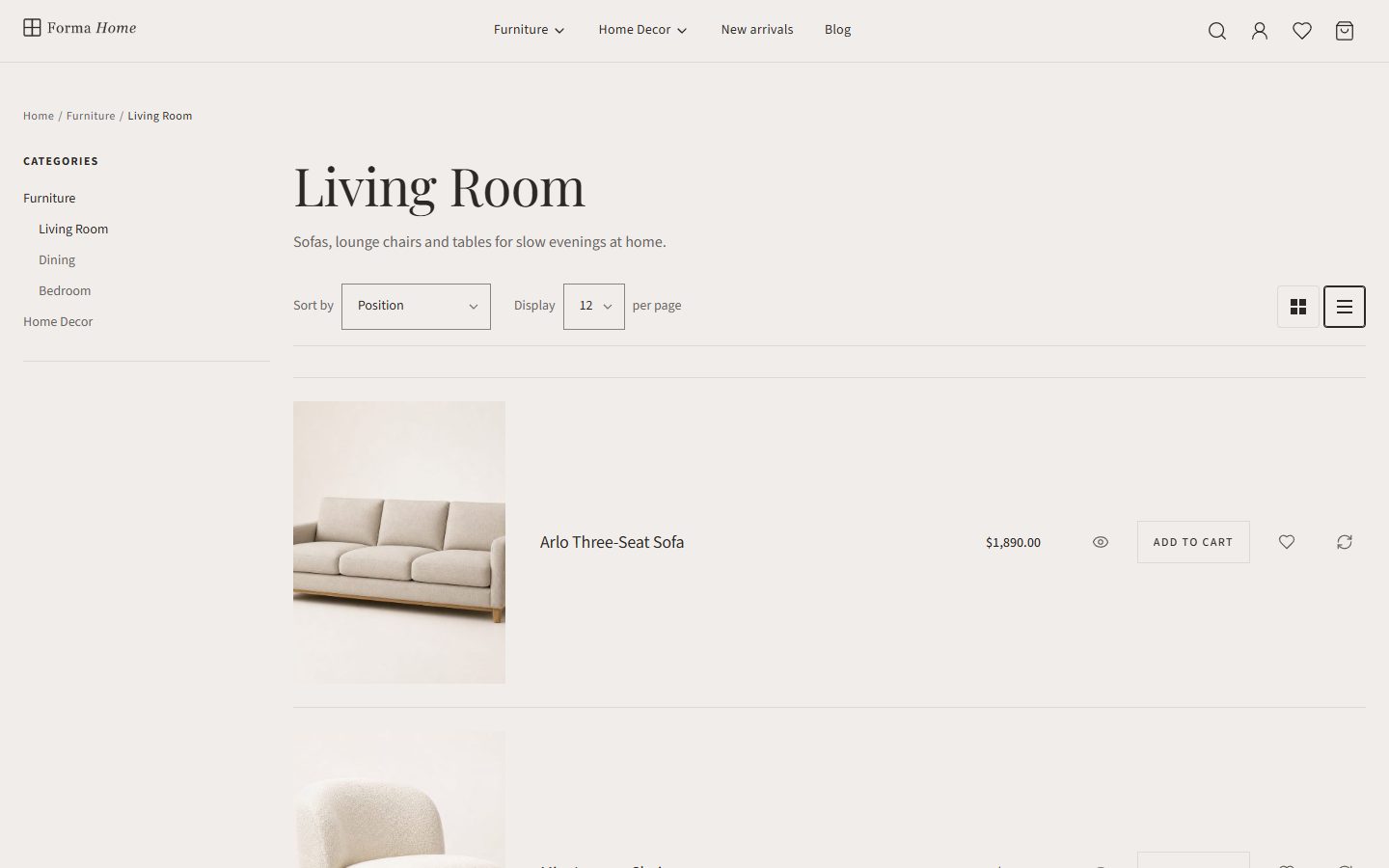
Category pages show products as a grid or a list. Shoppers switch with the buttons above the products.
Product cards
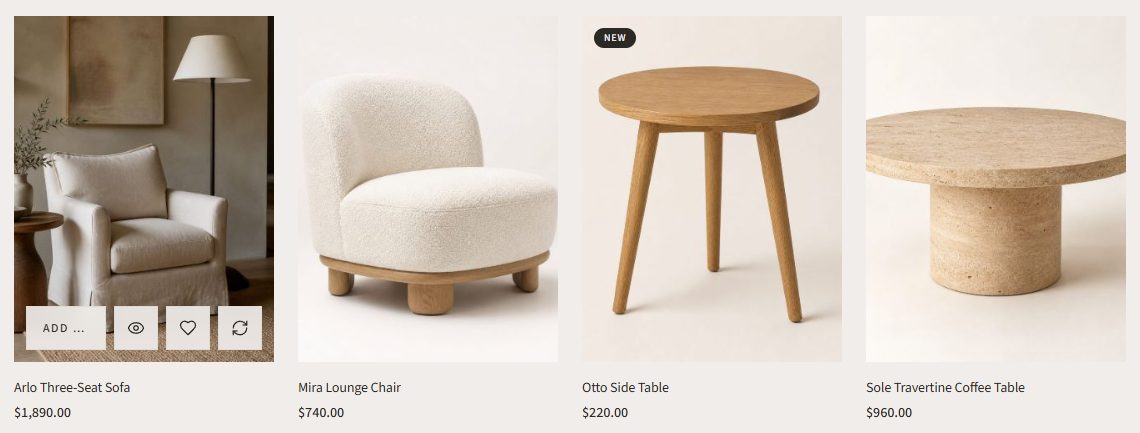
Second picture on hover
Cards show a product’s second picture when the pointer is over the card, for every product that has at least two pictures. No setting is needed: add a second picture to the product.
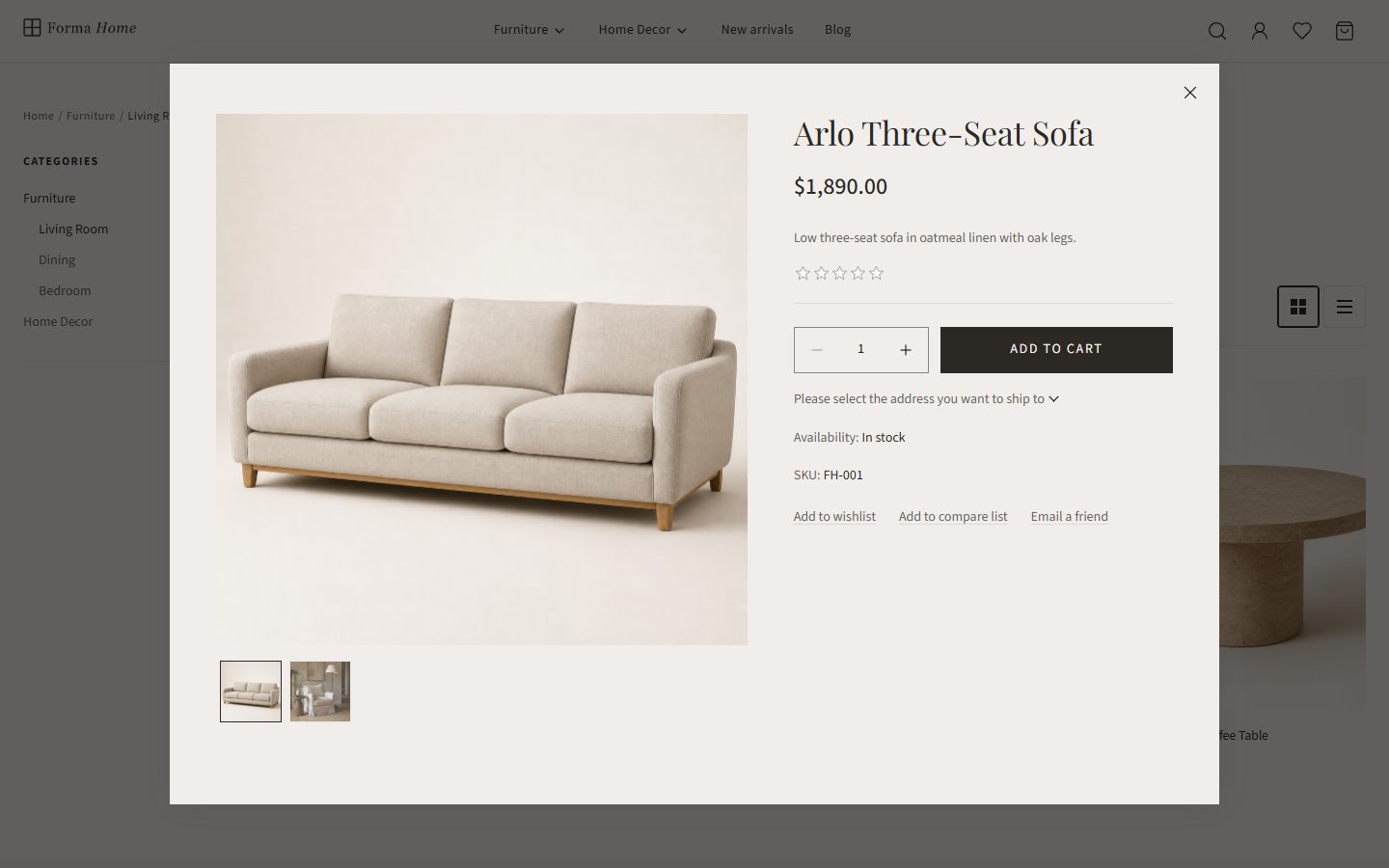
Quick view and quick add
On devices with a mouse, buttons appear on the card’s picture on hover:
- Add to cart, unless the product’s buy button is disabled;
- Quick view: opens the product in a window, with its pictures, price and Add to cart;
- Add to wishlist and Add to compare list, when those features are on in your store.
On touch screens these buttons are hidden and the card links to the product page. In list view the buttons are always shown.
Product page
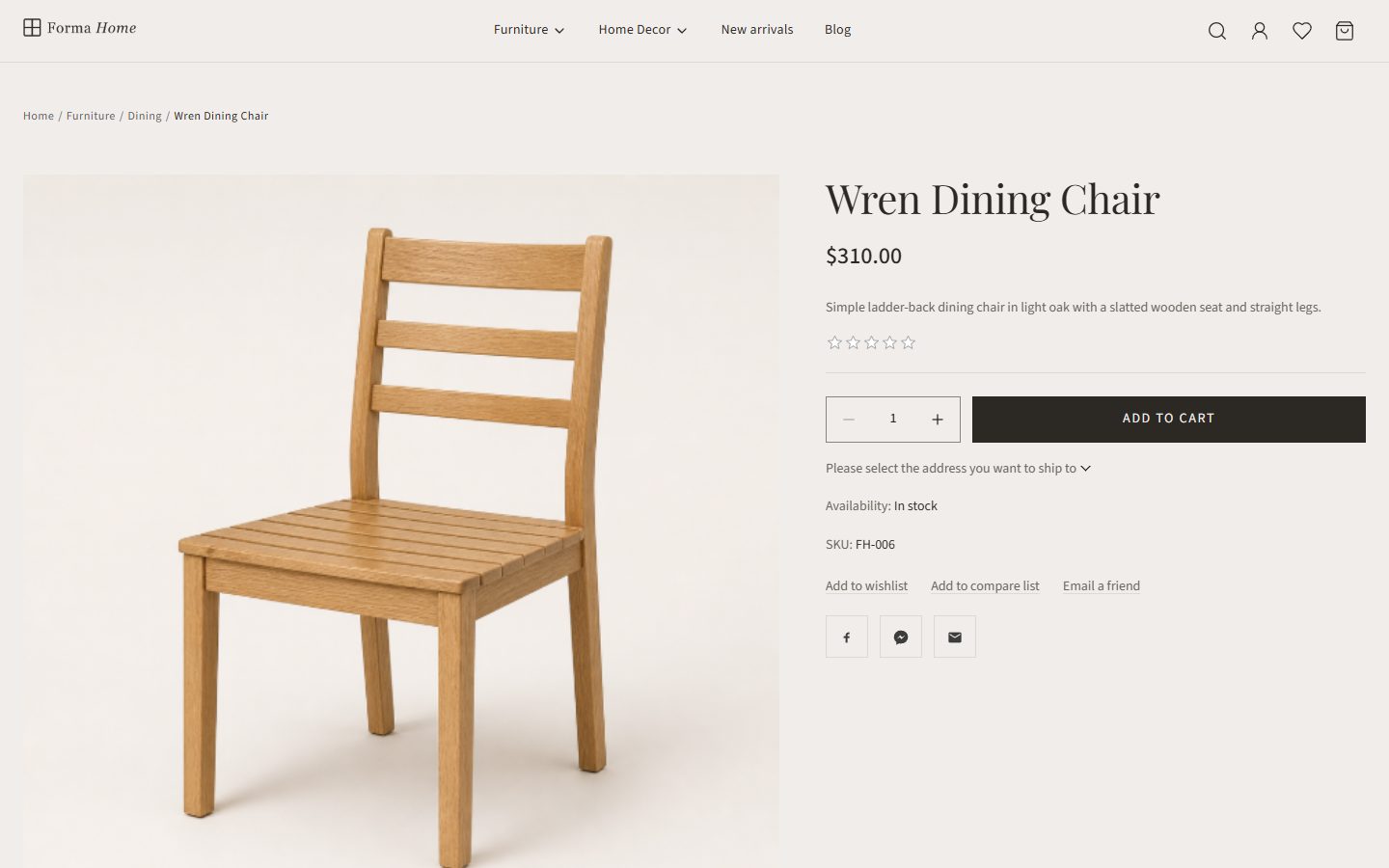
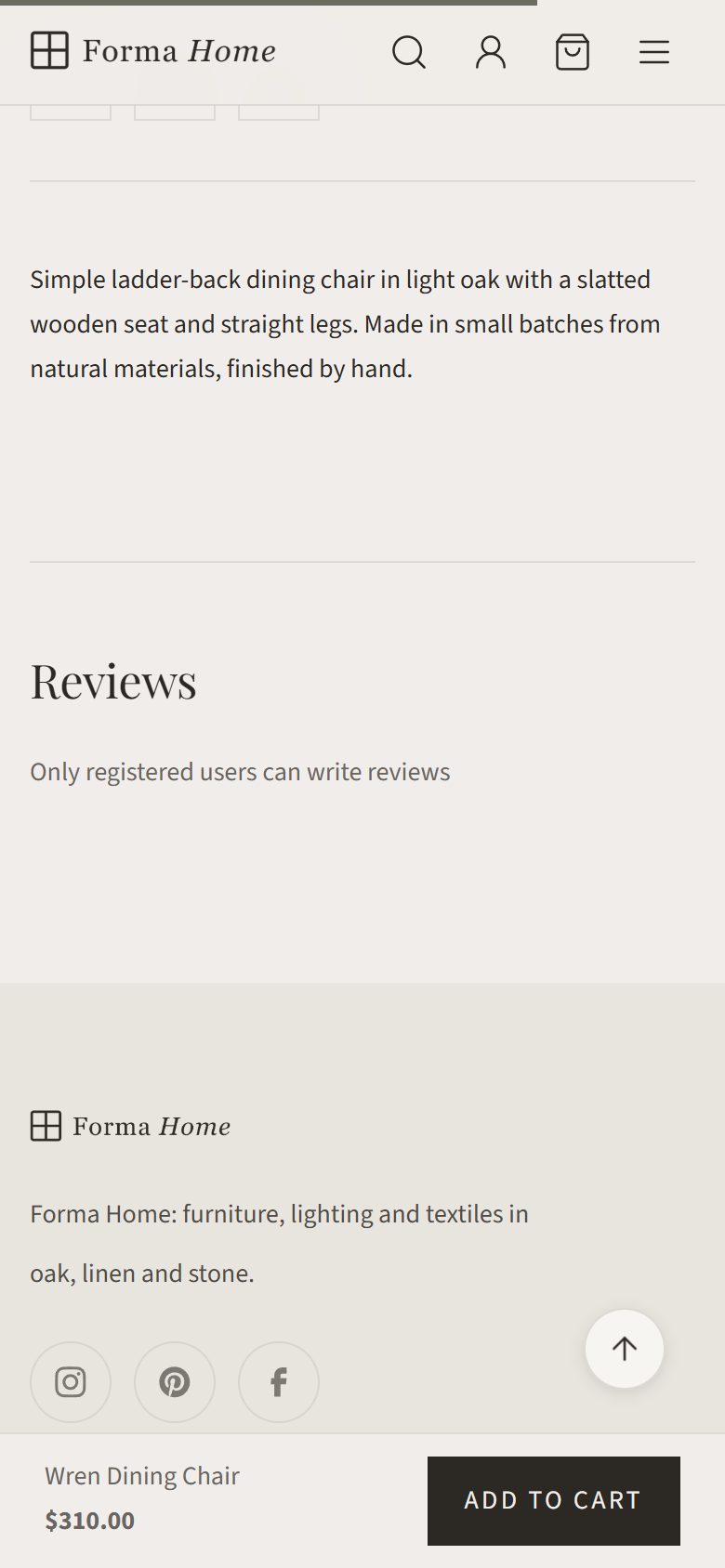
Sticky add to cart
On phones, a bar with the product name, the price and an Add to cart button stays at the bottom of the product page while the page’s own Add to cart button is scrolled out of view.
Cart drawer
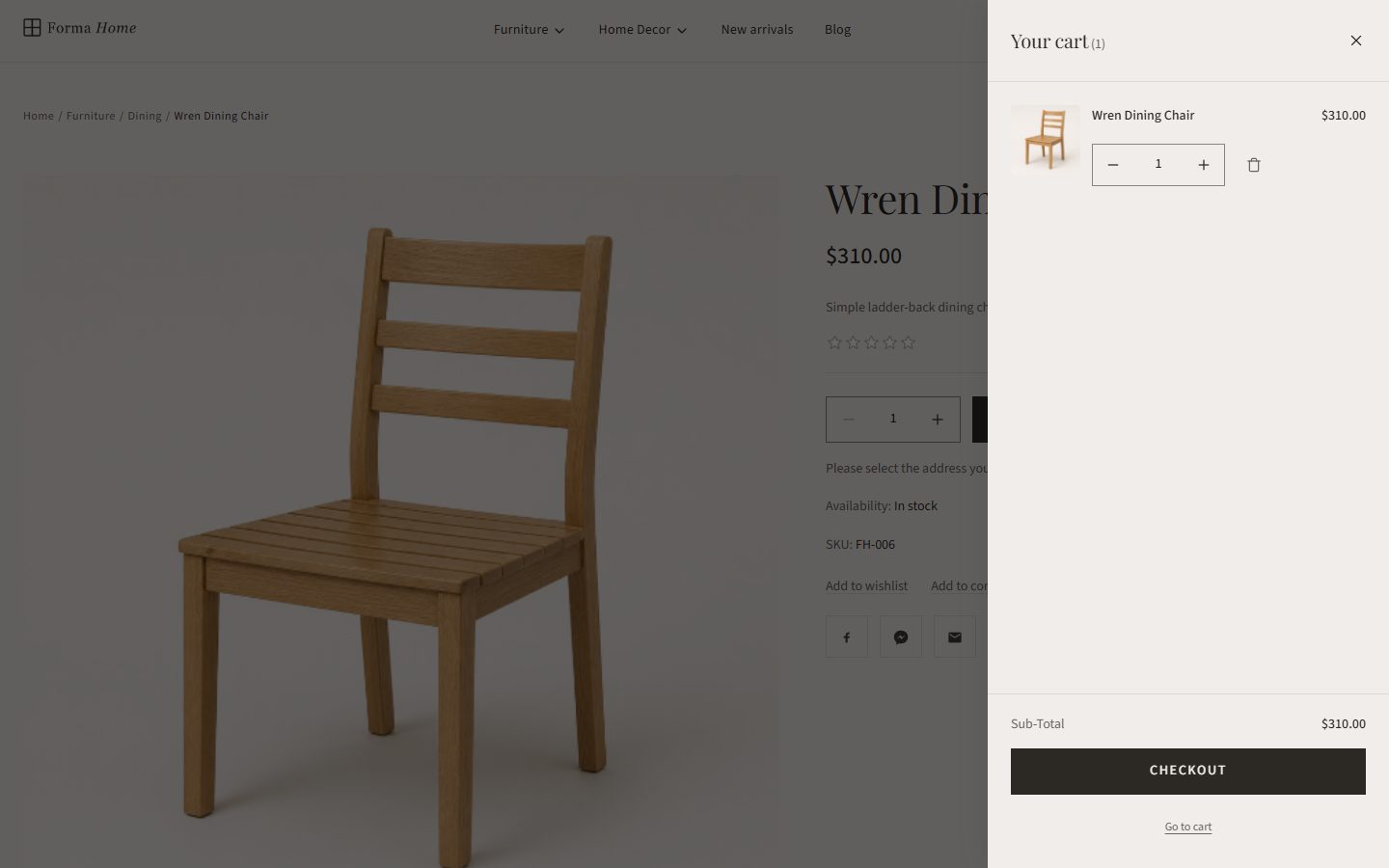
After Add to cart, the cart drawer opens with the cart contents. Shoppers can change quantities, remove items, go to checkout or open the cart page. The cart icon in the header opens the drawer too.